Highlights at a Glance
Technical fixes and UI improvements for smoother workflows
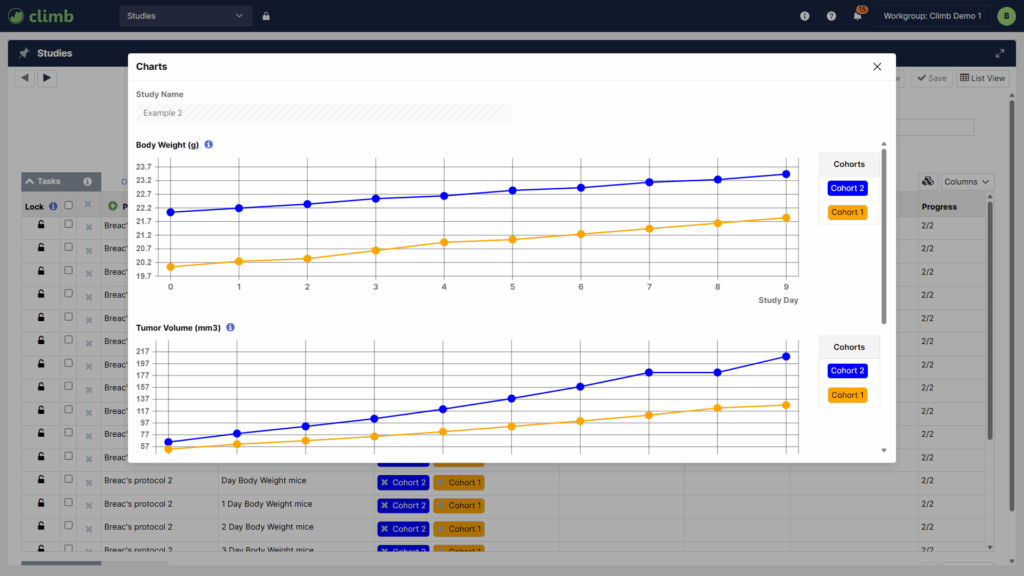
New Charts Modal for visualizing study data by cohort
Bulk Task Deletion in the Tasks table
Enhanced API Endpoints for better reporting and filtering
Improved Filters & Multiselect Typeahead across facets
| Studies |
| In the Details view, we added a Charts button (see screenshot above) that opens a modal for visualizing study data by cohort. This modal helps you view trends as studies progress. The Charts modal shows the Study Name and up to six charts, each based on task output pools configured in the Settings facet. Each chart plots mean values by cohort for completed tasks, with axes scaled dynamically. We added a cohort legend to the Charts modal, showing cohort colors and supporting scrolling when needed. |
| In the Tasks table Schedule tab, we added an instructions column to provide added context for technicians in the Workflow facet. |
| We added tabs in the Study End Result Report for each task output pool configured in the Settings facet. These tabs let you combine data from multiple task definitions, for example, body weight measurements from tasks with different flags. |
| We added animal comments and birth dates to the Study End Result Report. |
| We added past and present nicknames to the Clinical Observations tab in the Study End Result Report. |
| In the Bulk Edit Assigned To modal, we clarified that the displayed assignment refers to the currently assigned resource. |
| We updated the Assign Animals modal to hide empty cohorts, reducing clutter and making it easier to focus on cohorts with animals. Empty cohorts reappear automatically when you add animals. |
| We added support for bulk deleting tasks in the Tasks table List tab. You can now select multiple tasks using Shift and delete them in one action. |
| In the Animals table Individuals tab, we added sortable columns for dates in, dates out, and removal notes. These columns add visibility to animals’ study participation and removal without having to leave the Studies facet. These columns are hidden by default. We are aware of a visual issue with this enhancement and we plan to deliver a fix in an upcoming patch. |
| Workflow |
| In List View, we added the nickname column. This column shows animal nicknames associated with study tasks. Nicknames in the Workflow facet reflect animals’ current values until you complete tasks, at which point Climb shows the values at time of completion. |
| In List View and Bulk Data Entry, we added a read-only instructions column for added context on study tasks. To read long instructions, you can hover over values in List View. |
| We enhanced Bulk Data Entry search so you can complete multiple tasks for single animals without re-scanning their Microchip IDs. Searches prioritize matching tasks by completion status, due date, and task name. The cursor auto-navigates through tasks until all are complete. |
| In the Import and Workflow facets, you can now import semicolon-delimited CSV files. Please contact Instem’s support team if you would like to enable semicolon-delimited CSVs in your workgroup. |
| In the Tasks and Workflow facets, we added a new inherited (maximum value) data type, allowing you to build calculations based on the maximum value recorded for specific animals. |
| In the Tasks and Workflow facets, we added a new inherited (most recent value from output pool) data type, allowing you to build task calculations based on the most recent value recorded for specific animals, even across task definitions. |
| Animals |
| We improved the study name filter to be a multiselect typeahead. We also updated the label to show that the filter includes all study names, past and current. We also added a separate filter and column for current study names, which exclude studies where you have removed animals. |
| We added nicknames to the Bulk Edit view. This column is read-only, shown by default, and positioned after study name. |
| In the Animals and Housing facets, we added a new option to generate colony-type cage cards. |
| Orders |
| We added new columns to List View: ordered by, permit, and permit owner. These columns are sortable and hidden by default but can be enabled through the column selector. |
| We added new filters: ordered by, permit owner, and created by, all supporting multiselect typeahead for faster and more precise filtering. |
| API & Webhooks |
| We added effort and duration to task-related API endpoints. These fields help you track time spent per task or material and view task instance durations for better reporting and analysis. |
| We added new response fields to the GET Task Instances endpoint: start time, location position key, deviation, duration, task type, task type key, group task instance key, date due time, and instructions. We added new query parameters to support filtering: start time start and start time end for start time ranges, location position key for task location, deviation for allowance, duration for task duration in minutes, task type key for task type, group task instance key for distinguishing parent and child tasks, and date due time start and date due time end for due date ranges. These enhancements allow API consumers to retrieve and filter task instances by time ranges, location, allowance, duration, task type, due date, and parent-child relationships for more precise data queries. |
| We added webhook notifications for changes in the Cohorts facet, including cohort membership updates. We added background color and foreground color to the GET Cohort API response. We added a new GET Cohort Animals endpoint that returns cohort-animal associations with details such as cohort name, animal ID, and date in/out, and supports queries by cohort or material keys. |
| We added the nickname on job field to the GET Job Animals endpoint. |
| We added webhook notifications for changes to links between cohorts, group placeholders, animals, and individual placeholders. We added two new API endpoints: GET Cohort Placeholders for cohort–group placeholder relationships and GET Animal Placeholders for animal–individual placeholder relationships. Both endpoints support ID-based filtering and return identifiers for each entity in the relationship. |
| We added webhook notifications for the Clinical facet, including clinical records, clinical observations, and treatment plan events. |
| Other |
| We replaced the filter button with a new button that includes dynamic states: default, hover, and active with an indicator when you apply filters. This update improves clarity across all facets. |
| In the Cohorts facet, you can now add up to 100 animals or impact 5,000 tasks when adding animals to cohorts mid-study. Previously, the limit was 10 animals or 5,000 tasks. |
| Throughout Climb, we added multiselect typeheads to column selector menus. |
| The first and last name fields now support up to 64 characters. |
| We made technical improvements. |
| Fixes |
| In the Import facet, error handling for exceeding character length validation was not consistent as expected. |
| In the Settings facet, the Clinical tab’s study field did not match the label used in the Clinical facet. |
| In the Cohorts facet, viewing details of a previously split cohort could incorrectly display the Confirm Cohorts modal even when no changes were pending. |
| In the Import facet, error handling for values that were not present in the Vocabularies facet was not consistent as expected. |
| In the Studies facet, the source and sample group counts could be incorrect if you removed animals from studies. |
| In the Workflow facet, the modified by and modified date fields did not always update after you made changes in the Studies facet. |
| In the Housing facet, it was impossible to add notes to housing units without attached matings. |
| In the Samples facet, bulk deleting samples could show errors until you refreshed the page. |
| The Study Plan Report did not always format date-type characteristics as expected. |
| In the API, the GET Permits endpoint returned 400 errors when animals on permit values were null for permit species entries. |
| In the API, the Animals list view did not include job or cohort data for newly created animals. |
| In the Studies facet, copying studies did not work as expected when treatment values were null. |
| In the Studies facet, removing a task from a protocol and then adding materials without saving could result in errors. |
| In the Workflow facet Bulk Data Entry, bulk updates could incorrectly overwrite completed date and time values even if you did not intend to overwrite values. |
| In the Studies facet, studies incorrectly included previously generated Standard Reports when created using the copy function. |
| In the Studies facet, assigning duplicate animals to a task showed generic errors. |
| The Versions page could display outdated information until you refreshed the page. |
| In the Animals facet, species could show with taxon names instead of common names in the filter dropdown. |
| For empty values, the Studies facet Bulk Edit Assigned To modal showed null instead of not specified. |
| In filters across multiple facets, entering 0 returned all records instead of only those with a value of 0. |
| In the Workflow facet, completing tasks in Bulk Data Entry could cause multi-column sort order to revert unexpectedly. |
| In the Births facet, bulk adding animals failed when you included study names. |
| In the Studies facet, the toast message for updating nicknames contained incorrect text and did not translate according to workgroup settings. |
| In the Classic Studies facet, changing study statuses to end-states did not populate the Overview modal with incomplete tasks as expected. |
| Combined date and time fields hid time inputs even if you had set valid times. |
| In the Clinical facet, marking records as urgent with health techs assigned caused errors for users without Users facet access. |
| In the Tasks facet, adding calculated outputs introduced spaces into formulas. |
| We made technical fixes. |
| Note: Climb users are sometimes the first to find issues like these. If you meet an issue, please contact our support team by clicking the question mark icon (?) on Climb’s header. We are committed to delivering a high-quality product and will resolve the issue as quickly as we can. |
Note: Climb users are sometimes the first to find issues like these. If you meet an issue, please contact our support team by clicking the question mark icon (?) on Climb’s header. We are committed to delivering a high-quality product and will resolve the issue as quickly as we can.